
Getting Started
Connect your tools to AI assistants through a single MCP endpoint.
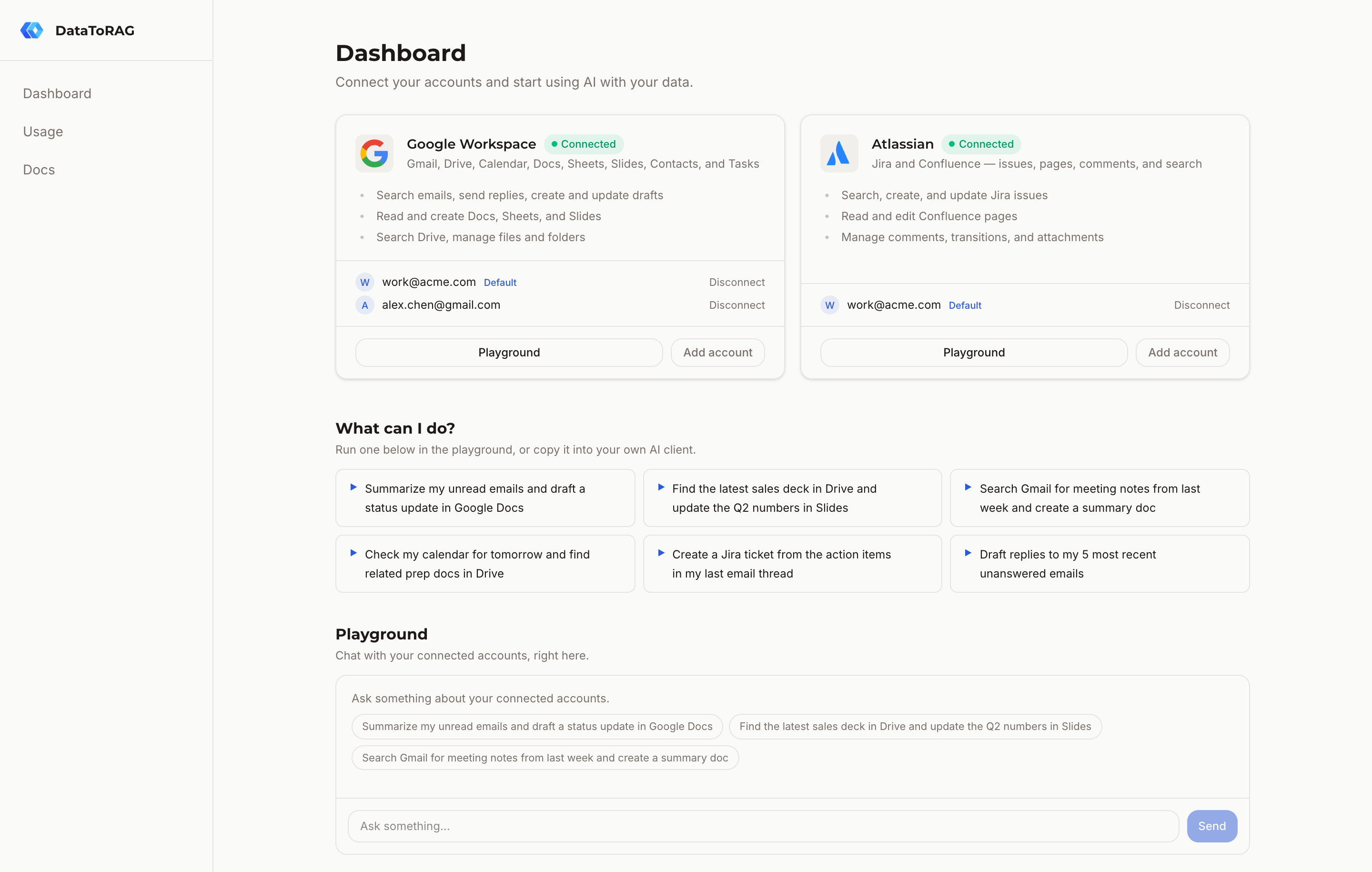
DataToRAG gives your AI assistant access to Google Workspace (Gmail, Drive, Calendar, Docs, Sheets, Slides, Contacts, Tasks) and Atlassian (Jira, Confluence) through a single MCP server. Want to see it in action first? Try the playground, a built-in chat in your dashboard that runs real tools against your connected accounts, no client setup needed.
Quick setup
Prefer video? This two-minute walkthrough covers the sign-in flow, account connection, and your first prompt against Workspace:
Setup is two connections, and both are required before your assistant can do anything:
- Connect your accounts. Sign in at datatorag.com/dashboard and connect your Google account (and Atlassian, if you use Jira or Confluence).
- Connect your AI client. This is the step most people miss: connecting an account in the dashboard does not connect your assistant. Your AI client (Claude, Cursor, ChatGPT) has to be pointed at the DataToRAG MCP endpoint separately. Pick your client below for exact steps:
Claude web
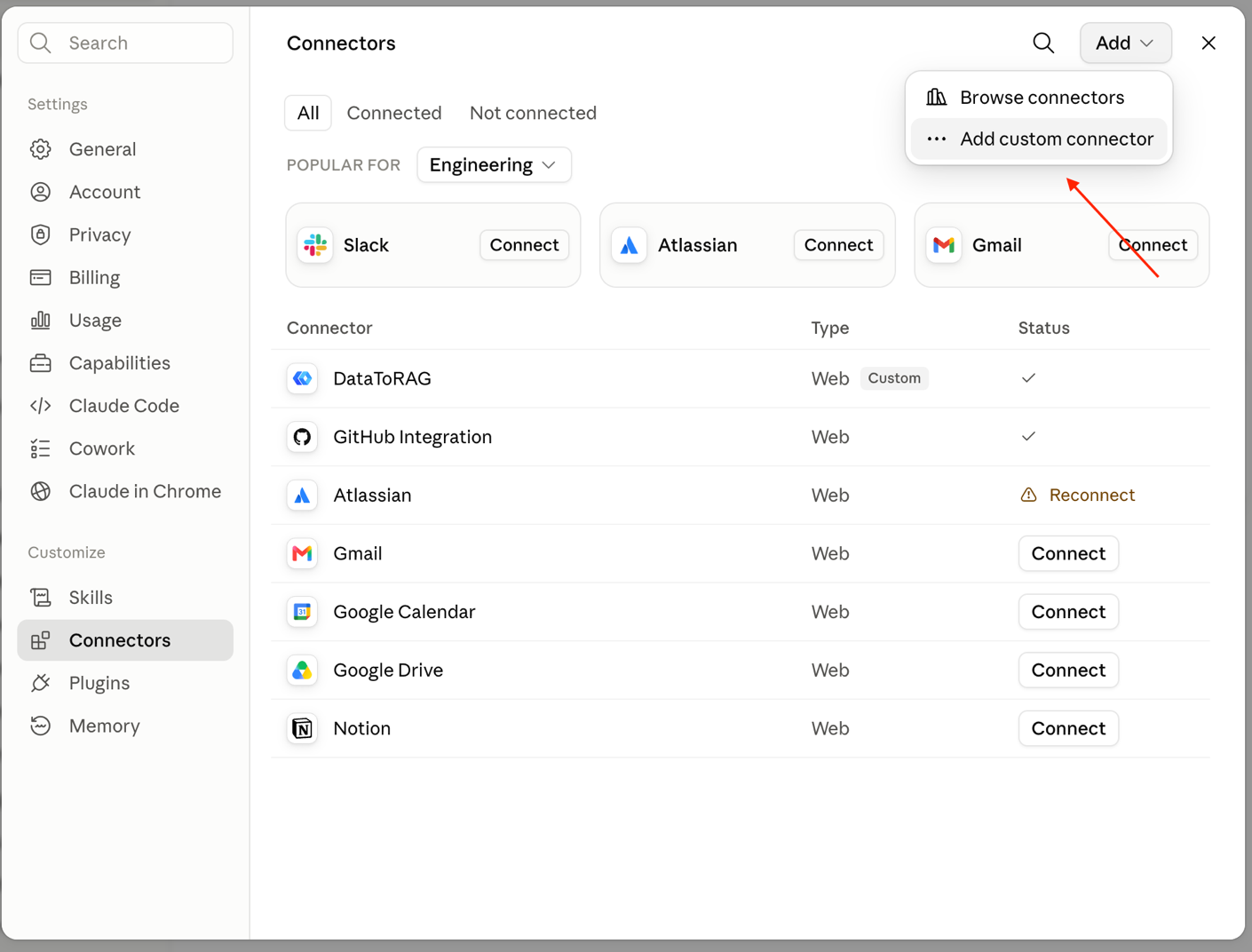
- 1. Open Customize → Connectors
- 2. Click "Add", then "Add custom connector"
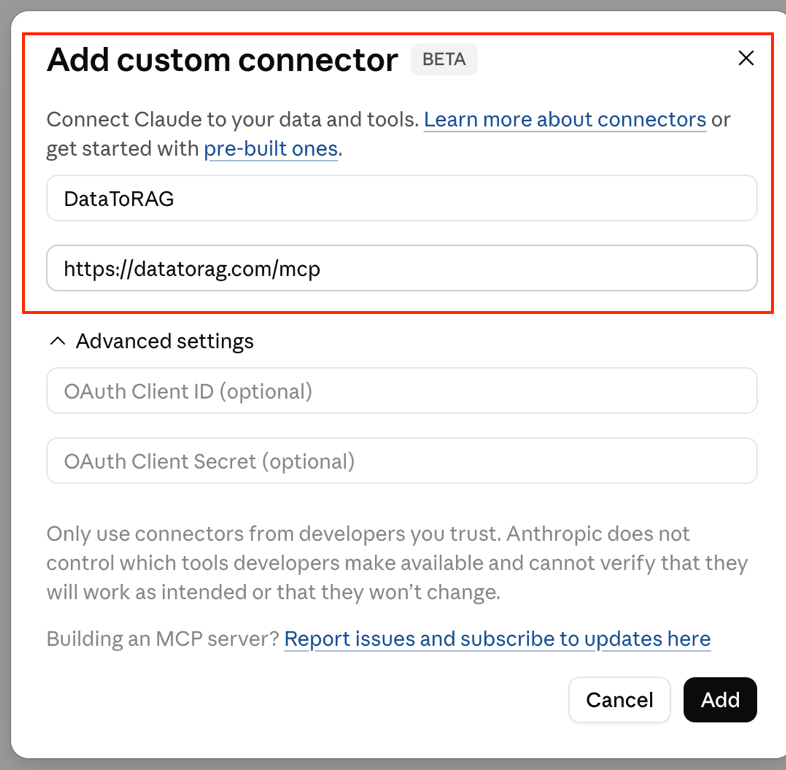
- 3. Paste this URL:
https://datatorag.com/mcp
- 4. Complete the sign-in when prompted
Once your client completes its sign-in, ask it something like "search my email for invoices from last month". The first successful tool call shows up in your dashboard within seconds.
Connect through Claude on the web
The full flow for claude.ai in the browser (Claude Desktop is identical):
1. Open the connector settings. In Claude, go to Customize, then Connectors, click Add, and choose "Add custom connector".
2. Name it and paste the endpoint. Use any name you like and this URL, leaving the advanced OAuth fields empty:
https://datatorag.com/mcp
3. Complete the sign-in, and tick the boxes. Click Add, and Claude redirects you to sign in with the same Google account you used on the DataToRAG dashboard.
Google's consent screen arrives with every box unchecked, and the Continue button works anyway. If you click straight through, the connection succeeds, DataToRAG shows as connected, and not one tool will work, because you granted permission to nothing. There is no error at any point. This is the single most common way a setup goes wrong.
Tick "Select all", or tick just the services you want, then click Continue.
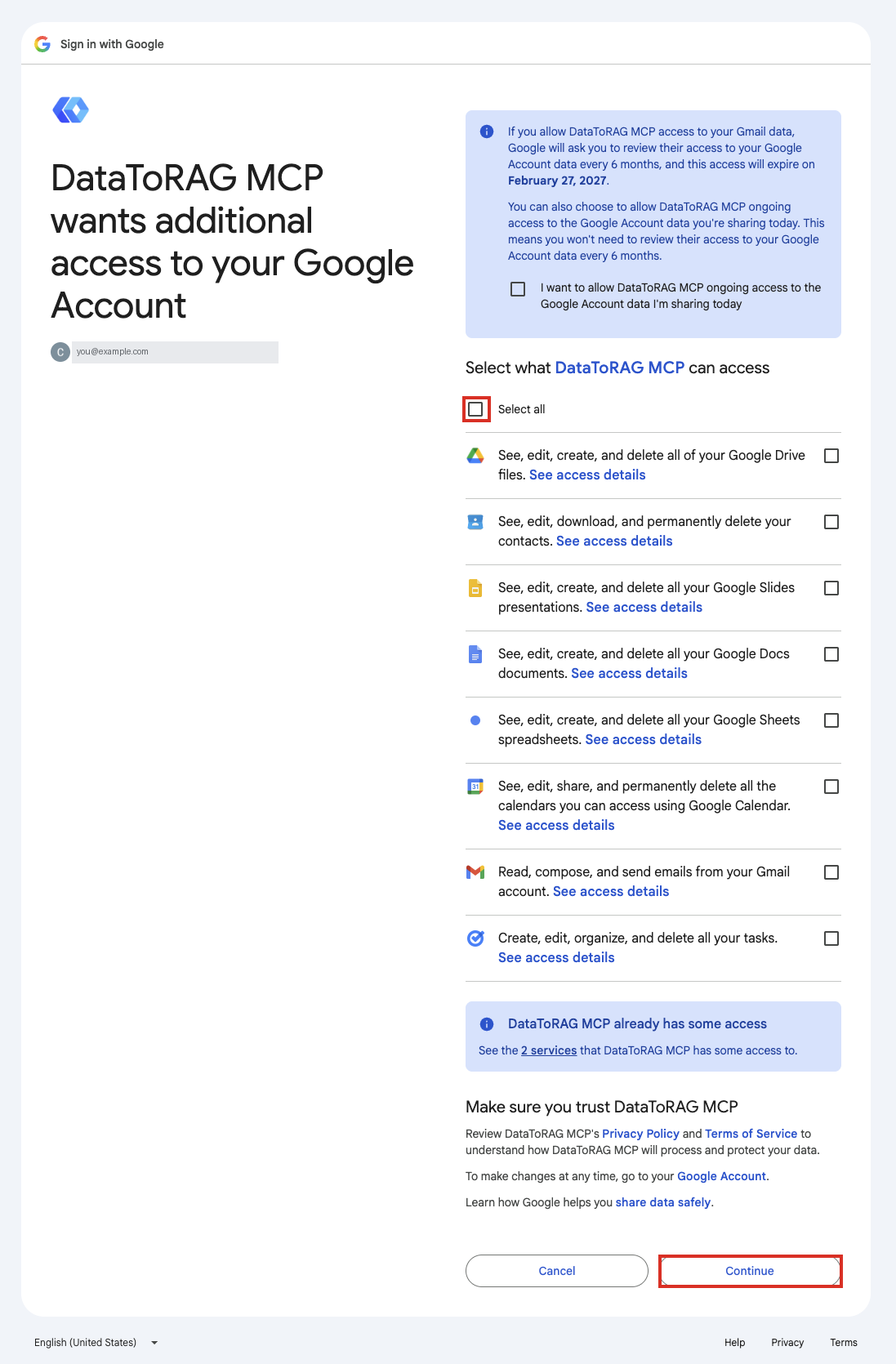
You can grant a subset and come back later, and connecting more services afterwards re-runs this same screen. If tools are missing in Claude, this is the first thing to check: open the DataToRAG dashboard, look at what your account actually granted, and reconnect if it is short.
4. Check the tools are available. Back in a chat, DataToRAG appears in Claude's connector list and its tools (like gmail_search and jira_search) are available to the conversation.
Try it in the playground
You don't need to connect an AI client to see what DataToRAG can do. The dashboard playground is a built-in chat that runs the same tools against your connected accounts, right in the browser. Ask it to search your email or list your open Jira issues and watch the tool calls it makes.
Anything that would change your data (sending an email, updating an issue) pauses for your explicit approval before it runs, so you can explore safely.
The playground is for trying things out. For day-to-day use, connect your own AI client with the steps above so your assistant carries your tools everywhere you work.
How it works
DataToRAG runs as a remote MCP server. When your AI assistant calls a tool like gmail_search, the request flows through our gateway to your connected Google account. Your data never touches our storage. Every operation is a pass-through to the Google API on your behalf.
One account per sign-in email
DataToRAG makes one account for each email you sign in with. Your plan, your usage and your connected accounts all belong to that one account.
You sign in to DataToRAG in more than one place: on the dashboard, and once in each AI app when you add the connector there. Google shows its account chooser every time. Pick the same email every time. If you pick a different Google login in one app, DataToRAG makes a second account for it, on the free plan, and that app's calls count there instead of on the account you set up. Nothing warns you, and nothing fails until the free limit is reached.
Using more than one Google account does not need more than one DataToRAG login. Sign in with one email, then connect your other Google accounts from the dashboard under that login. Several connected accounts side by side are part of every plan, and you choose which one is the default.
If an app is already on the wrong account, the fix is in the Usage docs, under "Calls counting on the wrong account".
Authentication
Each user connects their own Google account through OAuth. DataToRAG requests only the scopes needed for the tools you use. You can connect multiple accounts and set a default.
Available connectors
DataToRAG currently supports these services:
Google Workspace
- Gmail: Search, read, send, reply, forward, draft, save attachments, and manage labels
- Calendar: List, create, update, delete events, and check availability
- Drive: Search files, read content, create folders, rename and copy files
- Docs: Read, create, write, and batch update documents
- Sheets: Read, create, update, append, and delete spreadsheets, and manage tabs
- Slides: Read, create, batch update, and delete presentations
- Contacts: Search, list, create, update, and delete contacts
- Tasks: List task lists, list tasks, create, update, complete, and delete tasks
Atlassian
- Jira: Search issues with JQL, create, update, transition, comment, and look up attachment details
- Confluence: Search with CQL, read and edit pages, read and add comments, look up attachment details
Each connector is documented on its own page with available operations, required scopes, and example prompts.
Seeing what your assistant is doing
Every tool call shows up in your personal usage dashboard at datatorag.com/dashboard/usage: call volume, latency, error rates, and a per-tool breakdown. See the Usage docs for what gets tracked and how retention works.
Common questions
The FAQ covers the questions we hear most: setup order, what the gateway can and cannot do, the approval gate, and how it compares to Claude's native connectors.
Frequently asked questions
I connected my Google account but none of the tools work. What went wrong? #
Is connecting my Google account in the dashboard enough to set up DataToRAG? #
What URL do I point my AI client at? #
Can I grant only some Google services and add the rest later? #
I pay for Pro, so why are my calls counting on the free plan? #
Can I try DataToRAG without connecting an AI client? #
Where can I see what my assistant actually did? #
Try this on your own account
Connect a service once and your assistant can run every tool on this page against your real data. Free to start, no card.
Get started freeBy continuing you agree to our Terms of Service and Privacy Policy.