
Sheets
 Sheets
Read, create, update, append and delete Google Sheets, find rows by value, and format a range into a readable table.
The Sheets connector lets your AI assistant read data from spreadsheets, write to cells, append rows, create new sheets, and manage the tabs inside them. Values are written the way typing them would: numbers, dates and booleans are stored as such. The exception is text beginning with = or +, which stays literal unless that call sets parse_formulas, which turns evaluation on for the whole call rather than for one cell. To store everything verbatim as text, pass value_input_option: "RAW".
Available operations
| Tool | Description |
|---|---|
sheets_read |
Read one range, or several ranges in one call (ranges: [...]), one block per range in request order, a range asked for twice included (e.g., Sheet1!A1:D10) |
sheets_create |
Create a new spreadsheet |
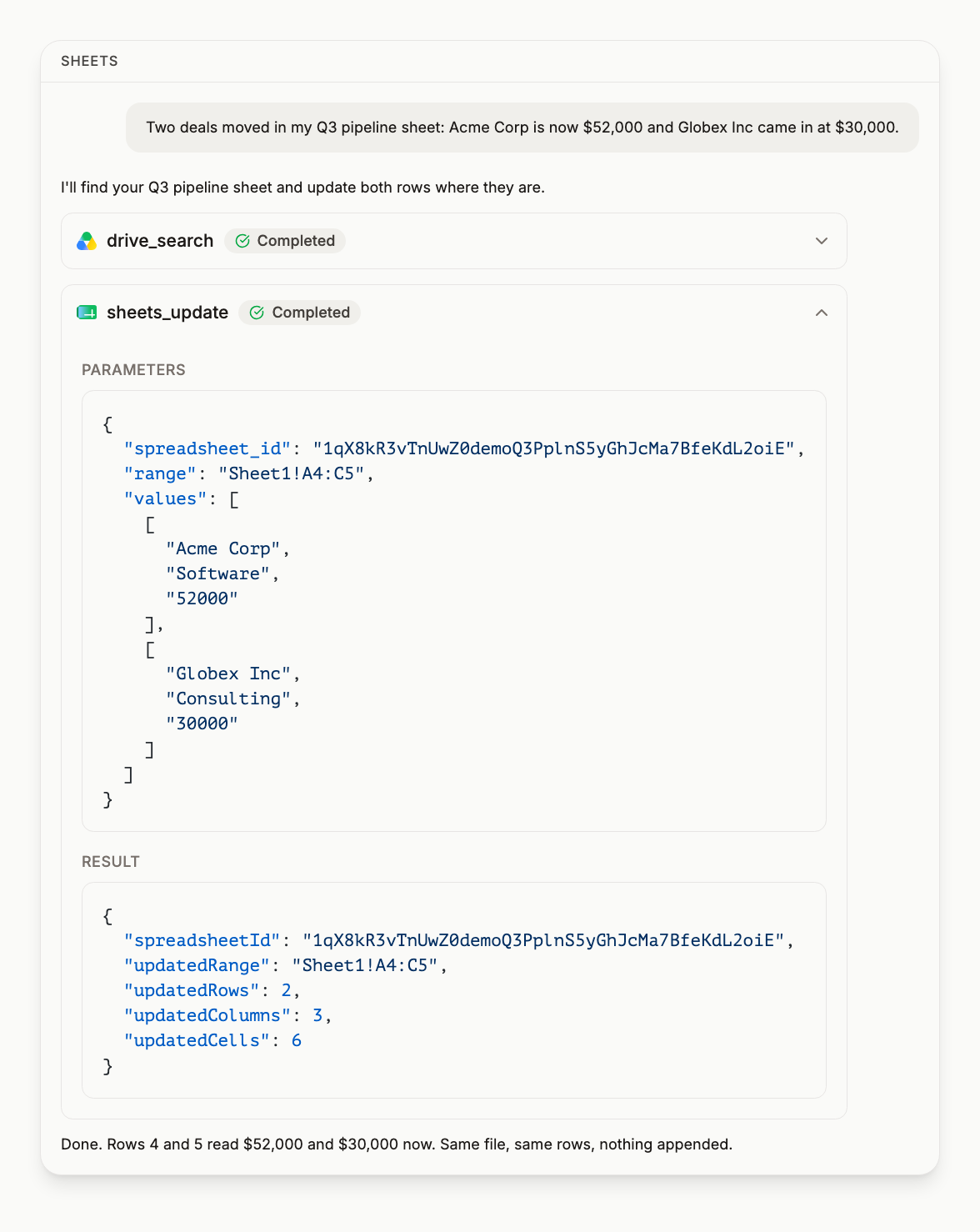
sheets_update |
Update specific cells in a sheet |
sheets_append |
Append rows to the end of a sheet |
sheets_delete |
Delete a spreadsheet |
sheets_add_tab |
Add a new tab to an existing spreadsheet, with an optional header row |
sheets_rename_tab |
Rename a tab by its current title; data is untouched, but saved ranges that name the old title stop resolving |
sheets_clear |
Clear values in a range while keeping the tab and its formatting; a bare tab name clears the whole tab |
sheets_delete_tab |
Delete a tab and every row in it; this cannot be undone via the API, so use sheets_clear when you only want to empty a tab |
sheets_find_rows |
Find the rows whose value in one column matches, and get back their row numbers plus a ready-made A1 range for each, so a lookup can be followed straight by an update. Searches many values in one call |
sheets_query |
Run a query in the QUERY() language over a range and get back only the matching rows: select, where, group by, order by, limit and the aggregates, in one call. Columns by sheet letter. A tab that does not exist is refused with the list of tabs. Read-only |
sheets_format_table |
Apply the whole readable-table pass to a range in one atomic call: header styling, frozen header row, column widths, wrapping, optional banding, and an optional trim of the empty grid outside the range |
sheets_format_range |
Set fonts, colours, wrapping, alignment, padding, number formats and merges on the A1 ranges you give. Takes a list of instructions and applies all of them in one atomic call |
sheets_batch_update |
The full Sheets batchUpdate pass-through, beneath the job-shaped tools above. Use it for what they do not cover: custom borders, inserting or deleting columns, duplicating tabs, protected ranges |
Which tab a range means
sheets_query, sheets_format_table and sheets_format_range check a range against the tabs the spreadsheet actually has before they run.
- A tab that does not exist is refused, and the refusal lists the tabs the spreadsheet has. Nothing is queried or formatted.
- A bare word that is the name of a tab is that tab, even when it also reads as a cell or a column: a tab called
Q3orLogis the tab. A bare word that is no tab is read as cells on the first tab. - Tab names match without regard to case, as they do in Sheets.
- A tab name with an apostrophe or an exclamation mark in it works when written the way Sheets writes it: in single quotes, with an apostrophe doubled, such as
'Bob''s'!A1:D10. sheets_querywith no range queries the first tab.
sheets_format_table with trim_grid is stricter. Trimming deletes everything outside the range, so a bare word that is both a tab and a cell reference is refused. Name the tab and the block, such as 'Q3'!A1:E60.
Columns that mix numbers and text. Google's query endpoint reads a column as whichever type most of its cells hold, and the cells of the other type come back empty. That is the endpoint's rule and cannot be turned off. For a column like that, use sheets_read or sheets_find_rows, which return every cell.
Making a sheet readable
A sheet can hold entirely correct values and still be unreadable: the API's
default column width is 100px, so anything longer than a few words is clipped.
sheets_format_table does the standard pass in one atomic call rather than one
call per property.
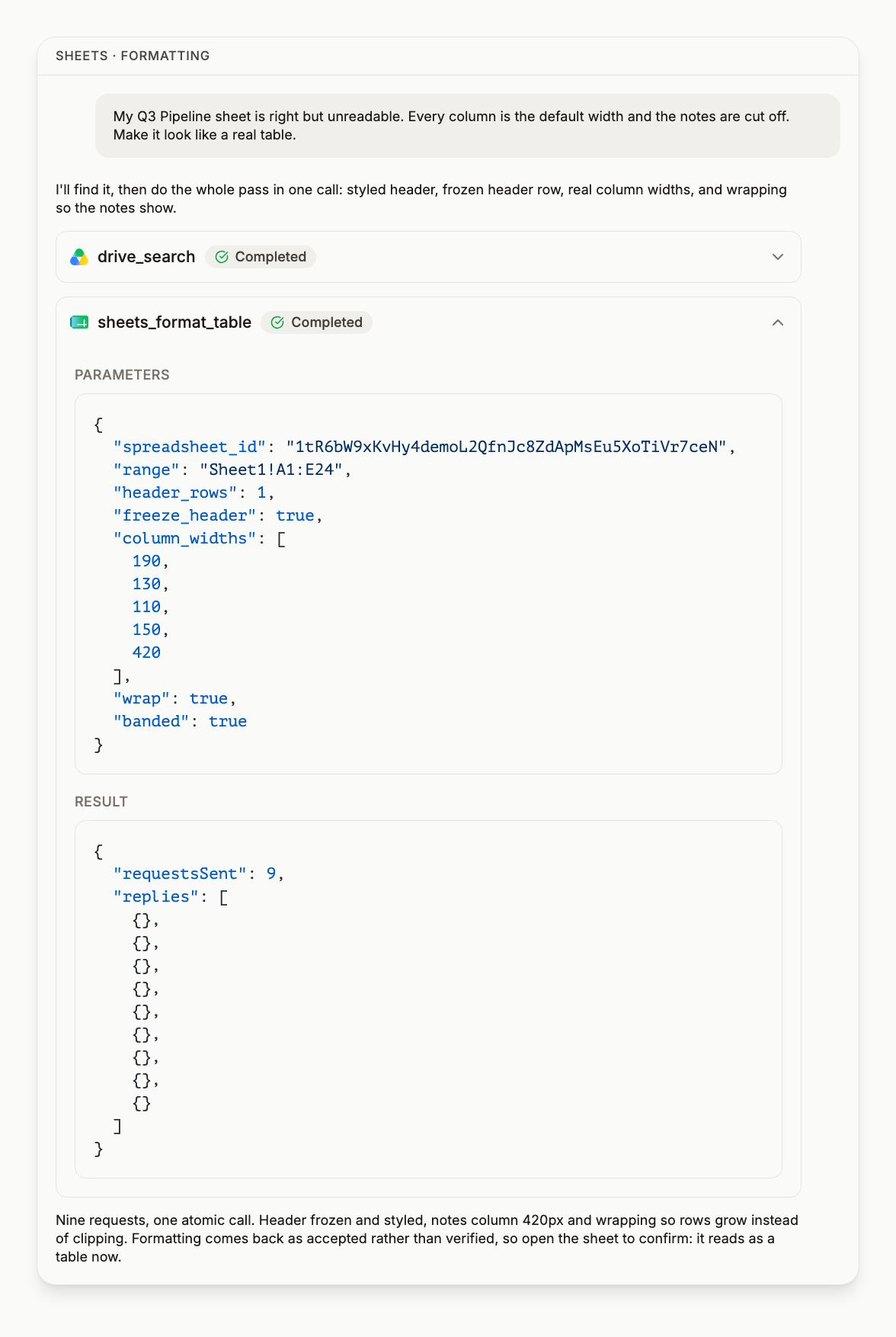
Formatting calls report what was sent, not what the sheet now looks like. Empty reply objects mean the batch was accepted; only opening the sheet tells you the result is what you meant.
Required scopes
https://www.googleapis.com/auth/spreadsheetshttps://www.googleapis.com/auth/drive(for delete, which is a Drive operation)
Example prompts
- "Read the first 20 rows of my Sales Pipeline sheet and summarize the top deals"
- "Create a new spreadsheet called 'Expense Tracker' with columns for date, category, amount, and notes"
- "Append today's metrics to the bottom of the KPI tracking sheet"
- "Update cell B2 in the Budget sheet to 15000"
- "Add a new tab called 'Q3' to the KPI tracking sheet and rename the old 'Sheet1' tab to 'Archive'"
Frequently asked questions
If I write a value starting with an equals sign, does it become a formula? #
Why does my spreadsheet look unreadable even though the values are right? #
Does a successful formatting call mean the sheet looks the way I wanted? #
What is the difference between clearing a tab and deleting one? #
Can it find rows by value and then update them? #
What if I need a spreadsheet operation the tools do not cover? #
Try this on your own account
Connect Google Workspace once and your assistant can run every tool on this page against your real data. Free to start, no card.
Get started freeBy continuing you agree to our Terms of Service and Privacy Policy.