
A File on Your Computer, Into Drive, Jira or an Email, Without Passing Through the Chat
Every file tool on DataToRAG used to take a reference: an email, an attachment, a Drive file. The file had to already live in a connected service. A screenshot on your laptop, a PDF someone sent you on Slack, an export from a tool we do not connect, none of them had a way in. On October 22 I needed to put one image into two emails and the only route was to publish it somewhere with a URL first.
Both halves of the fix are live. This post is what they do, where the file is at each step, and what the other connectors do with the same problem.
Two ways in
In the call. When Claude already holds the file, an image you shared in the chat for example, it can send the bytes with the call as a content reference: a name, a type, and the file as base64. drive_upload_file and jira_add_attachment take it, and so do the email tools as an attachment. The cap is 1 MB decoded. That cap is about the model, not the transport: the model has to type the base64 out as its answer, and a 50 KB image is 65,000 characters of it. Above 1 MB the tool refuses and names the other way.
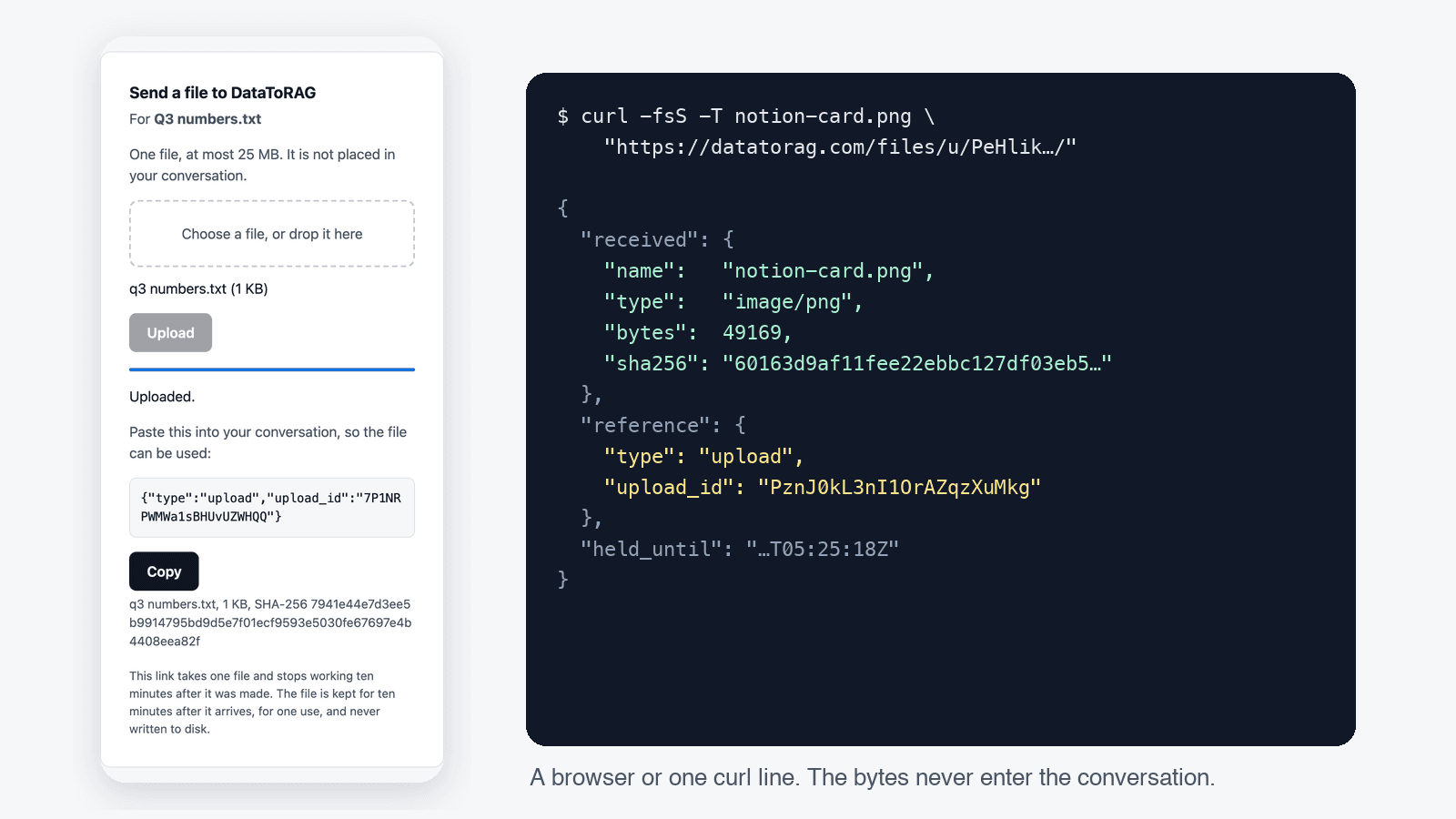
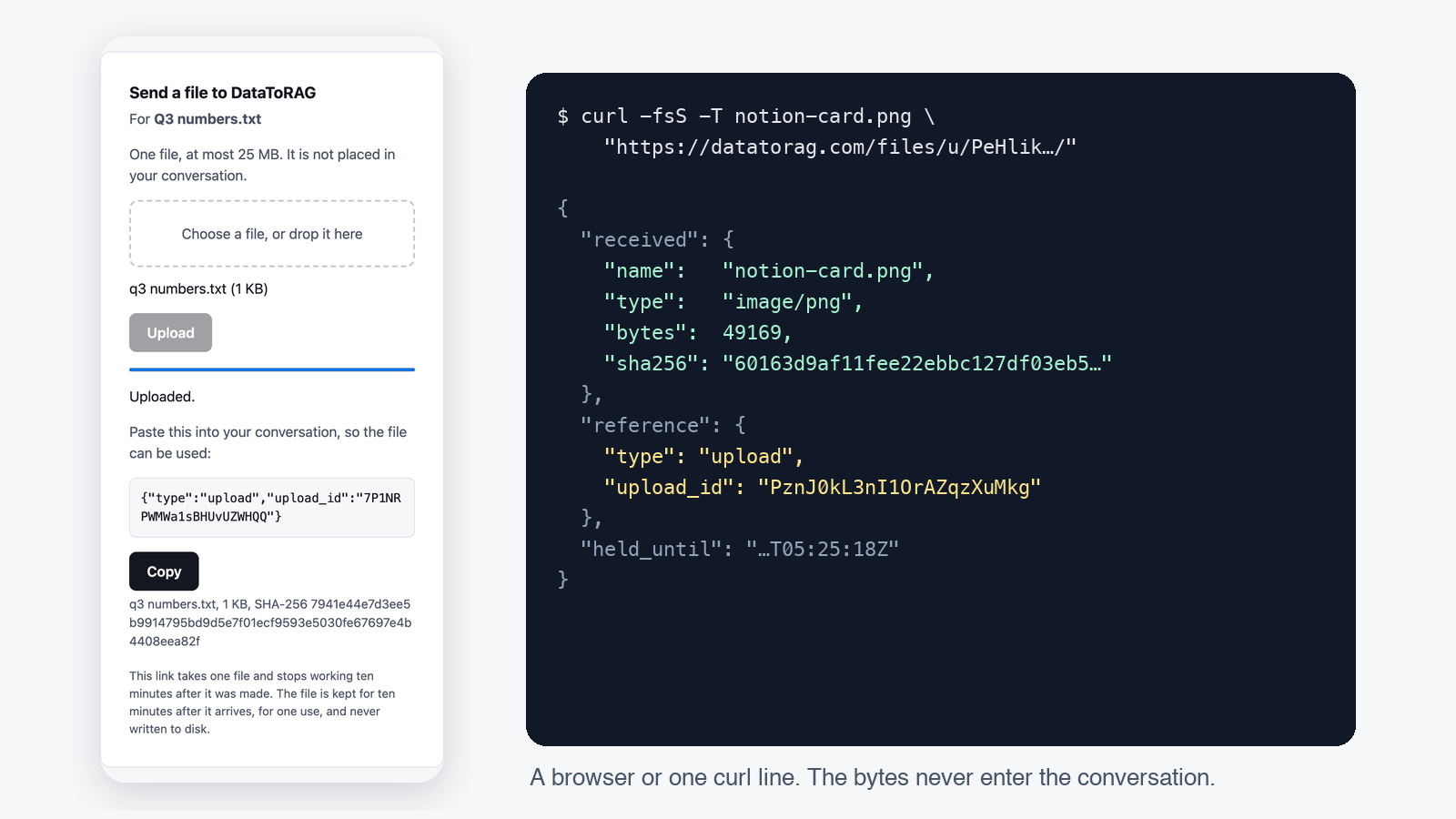
Through a link. Ask for an upload link and file_upload_link answers with a URL on datatorag.com and a one-line command:
curl -fsS -T ./report.pdf "https://datatorag.com/files/u/<token>/"
In a terminal, run the line. In a browser, open the link: a page with a drop zone, one Upload button, a progress bar, and then the receipt and a short reference to paste back into the conversation. The link takes one file, once, within ten minutes, up to 25 MB. Claude then uses the reference the same way it uses any other file reference.
Several files can ride one email: an email's attachments can mix Drive files, uploaded files and files sent in the call, up to Gmail's ten attachments and 25 MB.
What you get back
Every path answers a receipt: the file's name, its byte count and its SHA-256 as we received it, and for Drive the checksum Drive computed over what it stored and whether the two agree. The receipt is the check. The file's content is never in the conversation, so the hash is what lets you confirm the thing in Drive is the thing on your disk.
shasum -a 256 report.pdf
Where the file is
The gateway is a corridor, not a shelf. A file sent in the call is decoded in memory, handed to the destination and dropped. A file sent through a link is held in memory for at most ten minutes after it arrives, goes to exactly one call, and is dropped. Nothing is written to our disks at any point. A second use of a reference is refused in words; a link that is pasted into a tool call is cancelled, so a link stays yours.
What the other connectors do
I checked this first-hand before building it. Claude's own Google connectors take the bytes in the call, Gmail capped at 25 MB, with no receipt. Claude's Atlassian connector does the opposite: it hands the agent a curl command with a short-lived token and the bytes go from the agent's shell to Atlassian. Neither serves a claude.ai user with a large file, and neither tells you what was stored. We built both shapes, and added the receipt.
Limits
- One file per link, 25 MB, ten minutes, one use. Three links or held files waiting per account at a time.
- 1 MB decoded for a file sent in the call.
- One file per call into Drive and onto a Jira issue; several per email.
- An upload link counts as one tool call when it is made. The upload itself is not a call.
Try it
- "Make me an upload link for the contract PDF, then attach it to PROJ-42."
- "Put this screenshot into my Receipts folder in Drive."
- "Email the two spreadsheets on my desktop to Sam, with the Q3 deck from Drive."
The tool list, the receipt fields and the refusals are on the file references page. The two changelog entries are Put a file Claude already has into Drive or onto a Jira issue and Upload a file from your computer.
Ready to connect your data to AI?
Give Claude write access to your Google Workspace. Start free, or talk to us about your setup.
Related articles
Our home page compares Claude's built-in Google and Atlassian connectors with ours, row by row. Ten of those rows said the built-in connector could do something we could not. As of October 19 they say Yes on both sides, and the table now only shows what is left: what we do that they do not, and three things that are still theirs.
Claude Can File an Email on a Jira Issue Now, Without the Email Going Through ClaudeOne customer needed every email on a Jira issue as the original .eml, for compliance. He was doing it by driving Chrome. Now it is one tool call, the file goes from Gmail to Jira without touching the conversation, and the answer is a receipt with a hash. The design underneath is a file reference, and it is the shape every cross-service tool we build from here will take.
Save the Email to Your Own Computer, With a Checksum You Can CheckThe same customer who files emails on Jira issues asked for one more thing: the same file in his Downloads folder, and a way to prove the copy is the copy. An MCP server cannot write to your disk, so the answer is a link that works once, a page with one button, and a receipt with the SHA-256. Here is why it is shaped that way.